

Adding months and years to a date
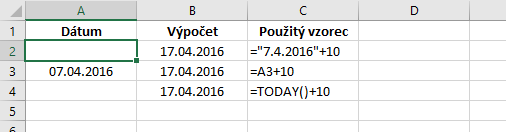
In Microsoft Excel, you can add days to dates by entering a formula. To add 10 days to a date, the formula should be =date+10. Figure 1 shows three ways to add 10 days to a date. In column C, the formula is used to calculate the result in column B.
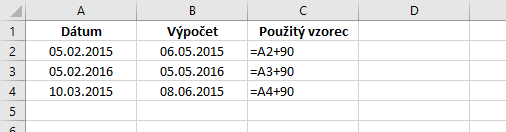
A problem can occur when we want to add several months or years to a date. To add 3 months, we might use =date+90, counting 90 days. Months do not have the same number of days, so this does not add exactly 3 months. The example is shown in Figure 2.
To add exactly 3 months, we need these functions:
-
YEAR
- extracts the year from a date.
=YEAR(A1)returns 2016. -
MONTH
- extracts the month from a date.
=MONTH(A1)returns 4. -
DAY
- extracts the day from a date.
=DAY(A1)returns 7. -
DATE
- builds a date from year, month and day numbers.
=DATE(2016;4;7)returns 7.4.2016. Extra months or days are carried over, for example=DATE(2010;42;1)-> 1.6.2013.
The functions YEAR,
MONTH,
DAY have 1 argument, the date.
DATE has 3 arguments:
=DATE(year;month;day).
Figure 3 shows the formula for adding exactly 3 months.
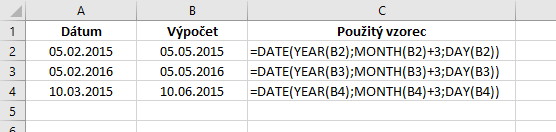
YEAR, MONTH and DAY split the date, so you can add months:
=DATE(YEAR(B2);MONTH(B2)+3;DAY(B2)).
For years, you could use
=date+365*numberOfYears,
but it is better to use
=DATE(YEAR(A2)+10;MONTH(A2);DAY(A2)).
With the date 1.1.2016 in A2, the formula returns 1.1.2026.